OBS Studio Setup Guide for YouTube, Twitch & Facebook Live


Asif Mohammad Sovon
Asif Mohammad Sovon, IT Assistant at Bangladesh Air Force and Fileion tech writer, simplifies tech t...
How to Configure OBS Studio for Streaming on YouTube, Twitch, and Facebook
Step 1: Download and Install OBS Studio
Step 2: Switch to Advanced Output Mode
Step 3: Choose the Right Encoder
Step 4: Set Bitrate and Resolution by Platform
Step 5: Configure Audio Settings
Step 6: Connect Your Streaming Service
What is the best OBS bitrate for streaming on Twitch?
Can I use the same OBS settings for YouTube and Facebook Live?
Do I need a powerful PC to run OBS Studio?
Setting up OBS Studio the wrong way shows up fast. Your Twitch stream freezes mid-sentence. Your YouTube upload looks fine on your screen but blurry to viewers. Your Facebook Live drops to 480p for no clear reason. Most of these problems come down to one thing: settings that were never actually configured for streaming.
This guide walks through the exact settings you need for YouTube, Twitch, and Facebook Live, covering encoders, bitrate, resolution, and audio configuration.
What is OBS Studio?
OBS Studio stands for Open Broadcaster Software. It is a free, open-source program built for two jobs: recording video and streaming it live. You can pull in your screen, your webcam, in-game audio, or a mix of all three, then send it out live or save it as a file.
The people who use it vary widely. Gamers and streamers run it for Twitch and YouTube. Teachers use it to record lectures and tutorials. Businesses turn to it for webinars, product demos, and internal training videos.
The software itself does not guarantee good results. The settings behind it do. Configured properly, OBS delivers stable streams, clean recordings, and real control over your video and audio quality.
How to Configure OBS Studio for Streaming on YouTube, Twitch, and Facebook
The latest release, version 32.x, runs on Windows 10 and 11, macOS 12 and newer, and modern 64-bit Linux distributions. It includes a rebuilt audio mixer and improved hardware encoding support, but its default settings are not tuned for streaming out of the box.
You need to adjust a few core options before you go live. If you want a ready-to-use setup without digging through every menu, you can download OBS Studio from Fileion and follow the steps below.
Step 1: Download and Install OBS Studio
Download the installer for your operating system and run through the setup wizard. On first launch, OBS offers an Auto-Configuration Wizard that scans your hardware and suggests baseline settings. This is a good starting point, but the manual settings below give you more control.
Step 2: Switch to Advanced Output Mode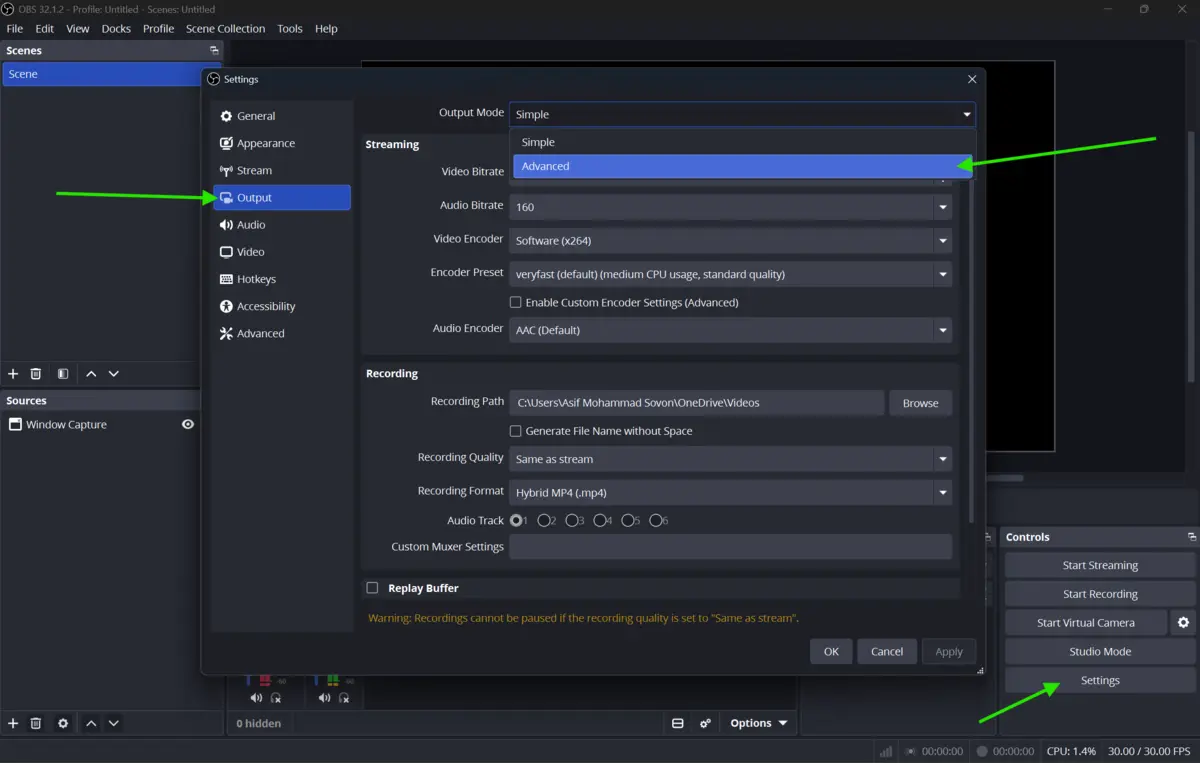
Go to Settings, then Output, and change the mode from Simple to Advanced. Simple mode hides encoder-specific options you will need for platform-accurate streaming. Once in Advanced mode, you can set the encoder, rate control, bitrate, and keyframe intervals separately for streaming and recording.
Step 3: Choose the Right Encoder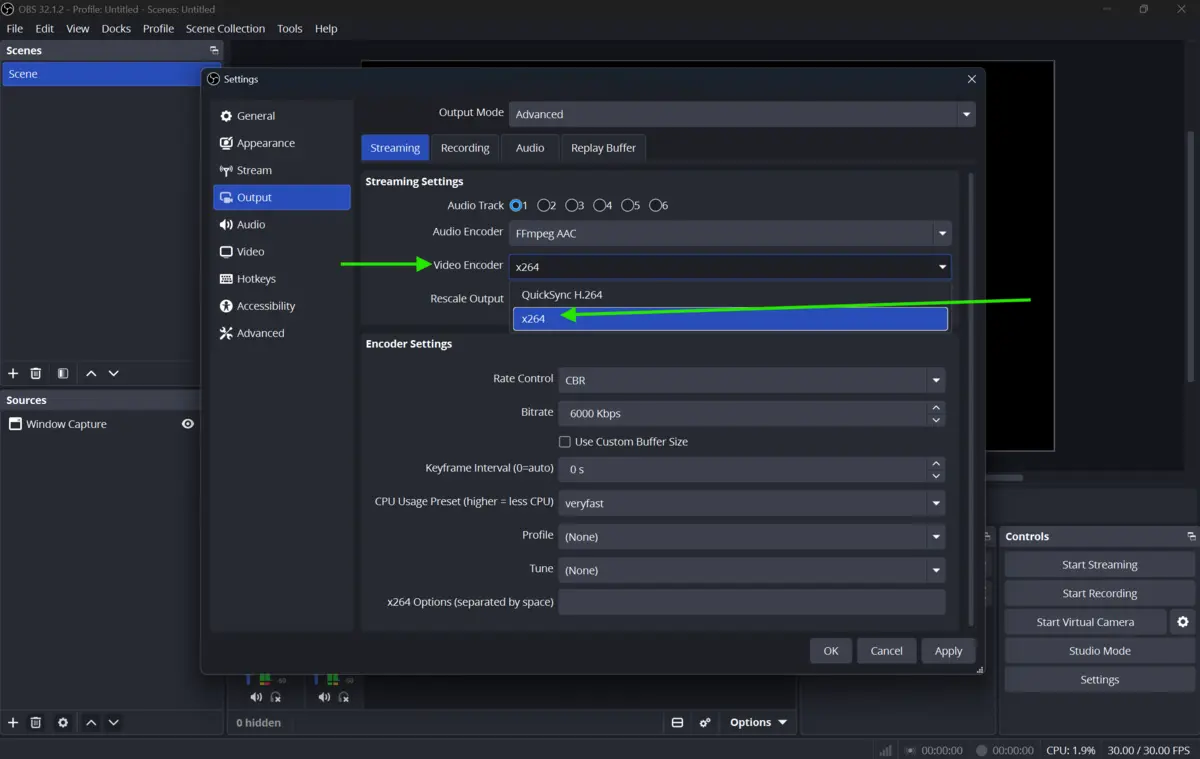
If you have an NVIDIA GPU from the GTX 10-series or newer, select NVENC H.264. It offloads encoding to the GPU, keeping CPU usage low while gaming. AMD users with RX 6000-series or newer cards can rely on AMF with similar results. Without a dedicated GPU, x264 with a very fast preset is the safer fallback, though it uses more CPU.
Step 4: Set Bitrate and Resolution by Platform
Each platform has its own recommended range. Using a bitrate above a platform's cap causes the server to re-encode your stream, which lowers visible quality.
Twitch: Use CBR, which means Constant Bitrate, with a 2-second keyframe interval. Twitch supports resolutions up to 1080p at 60 frames per second, with a video bitrate kept at or below 6,000 Kbps for stable delivery.
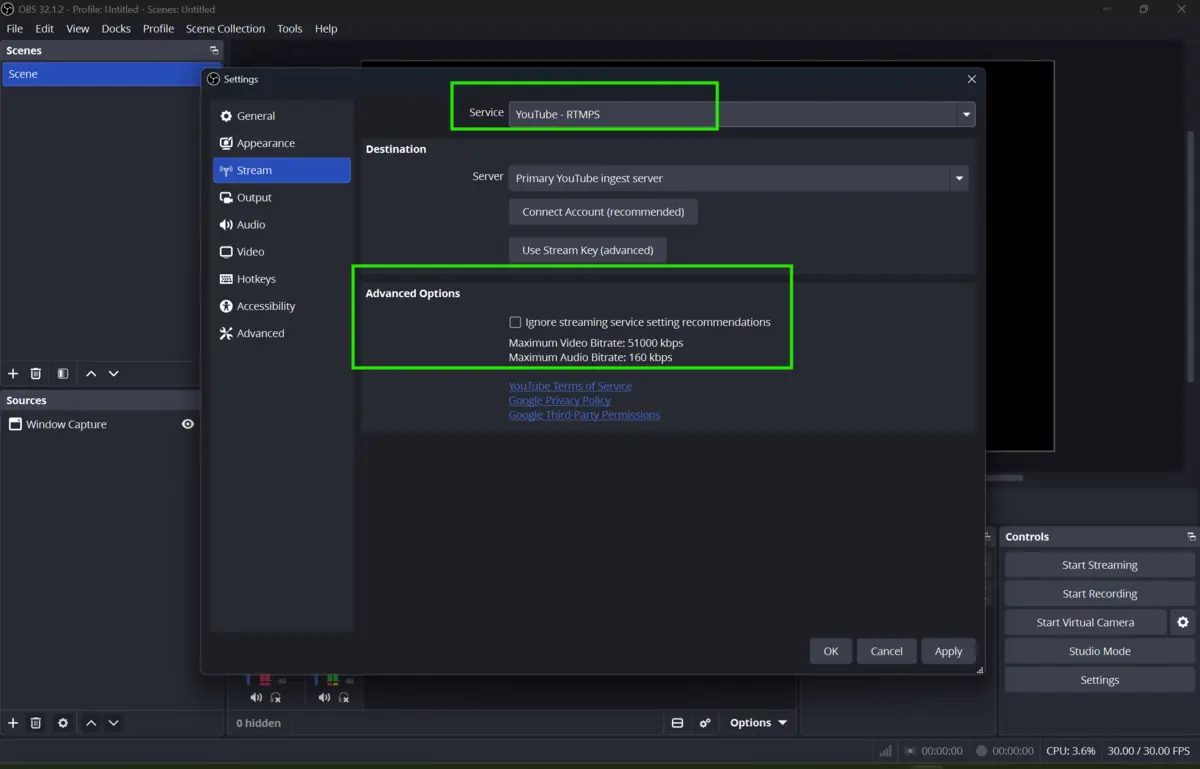 YouTube: YouTube Live accepts a wider bitrate range, typically between 4,500 and 9,000 Kbps for 1080p streams, also with a 2-second keyframe interval. H.264 remains the safest codec choice for broad compatibility, though YouTube also supports AV1 and HEVC through its Enhanced RTMP pipeline.
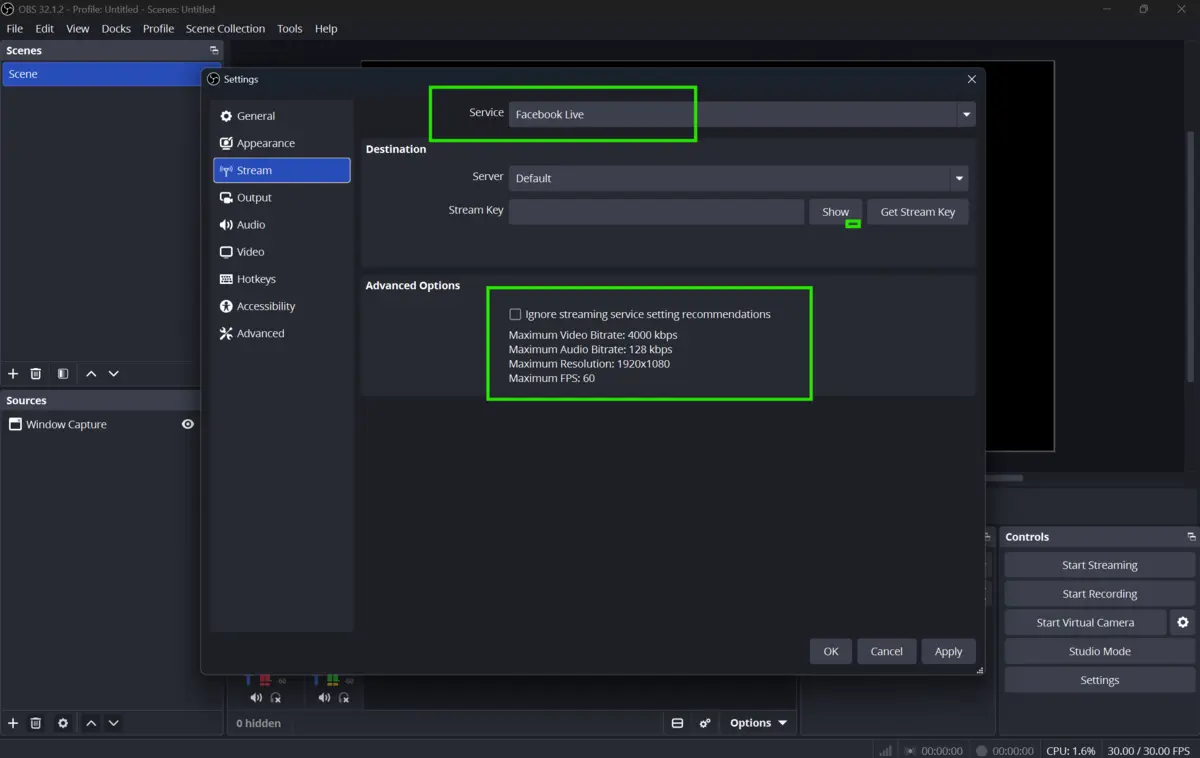 Facebook Live: Facebook Live supports up to 1080p at 60 FPS, with recommended bitrates generally between 4,500 and 9,000 Kbps and the same 2-second keyframe interval. Some official Facebook guidance still lists a more conservative baseline around 4,000 to 6,000 Kbps for 1080p at 30 FPS, so if your upload speed is limited, start on the lower end and adjust upward.
If your internet connection speed cannot sustain these numbers, drop resolution before you drop bitrate. A steady 720p stream looks better to viewers than a 1080p stream that keeps buffering.
Step 5: Configure Audio Settings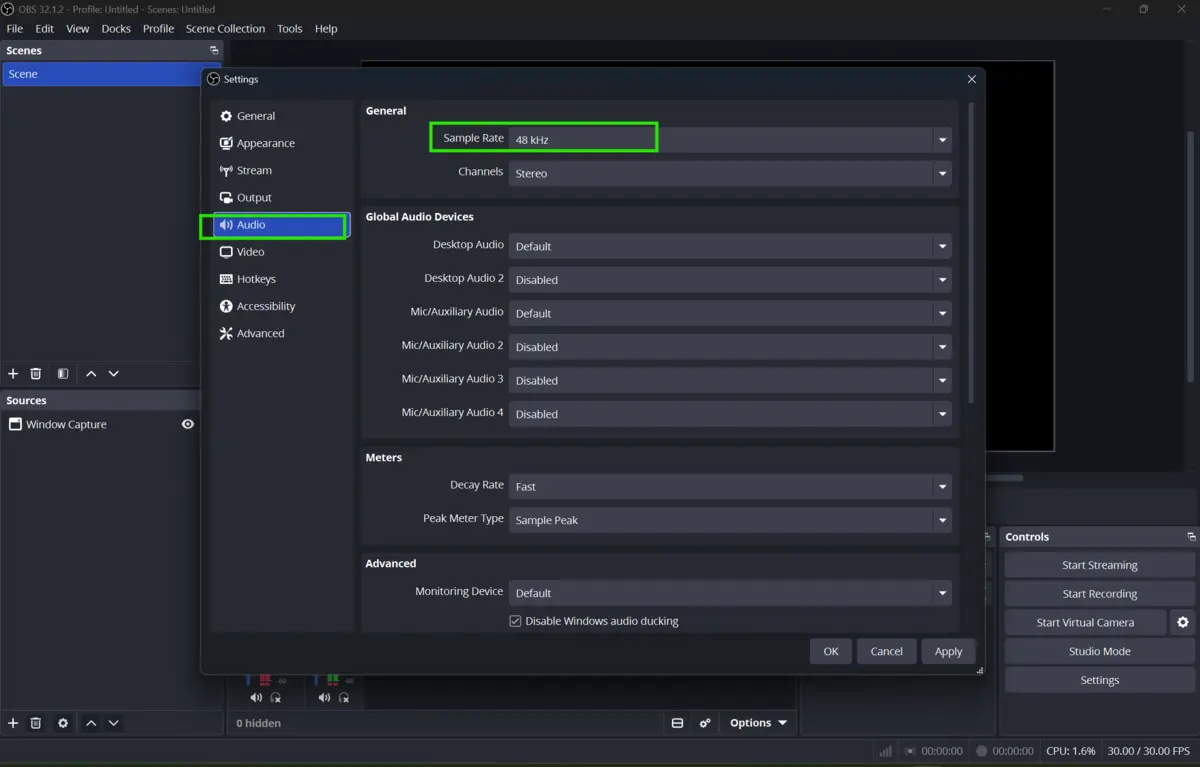
Set your sample rate to 48 kHz across OBS, your microphone properties, and your system audio settings, so nothing drifts out of sync. Use 160 Kbps for general talk or gaming audio, and 320 Kbps for music or podcast content. A practical filter chain for your microphone is Noise Suppression, then a Compressor, then a Noise Gate. Aim for your voice to peak around 6 dB on the mixer to avoid clipping.
Step 6: Connect Your Streaming Service
Open the Stream tab in Settings and choose your platform from the Service dropdown, or select Custom for a direct RTMP URL. Paste your stream key, or use Connect Account where available, then click Apply. Test with a private or unlisted stream before going live publicly.
Step 7: Build Your Scenes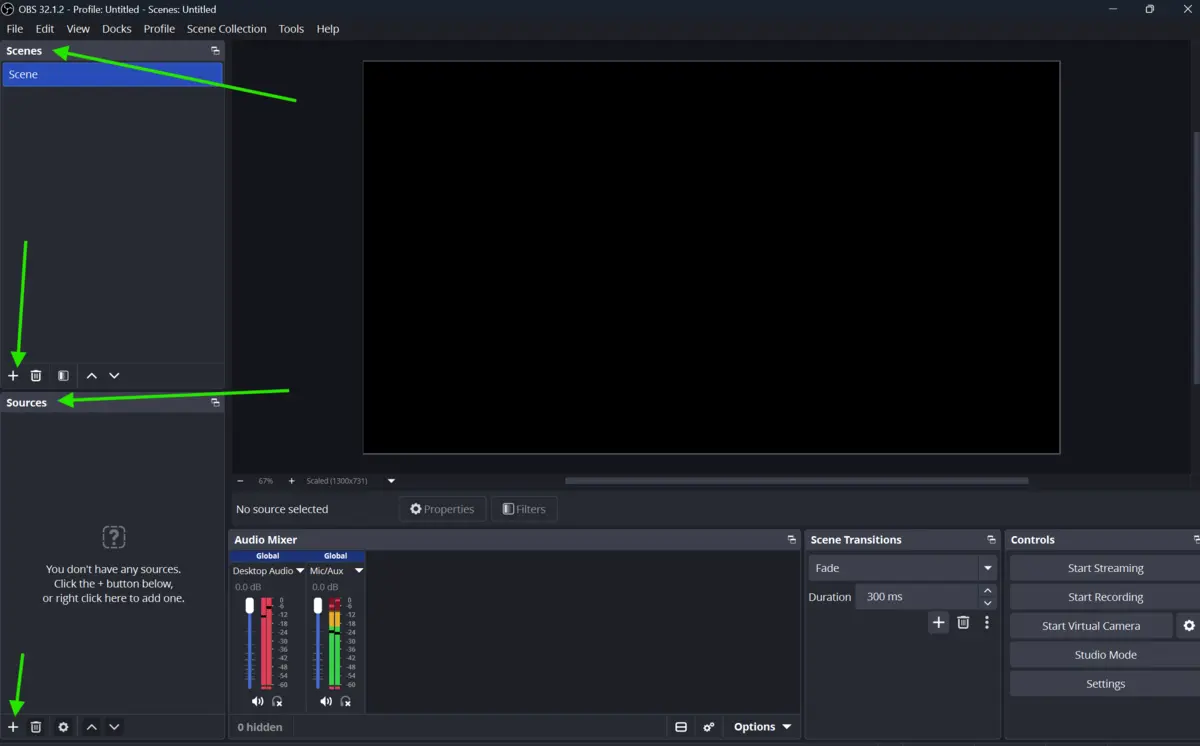
Keep scenes simple. Every added source, overlay, or browser widget adds CPU and GPU load. Start with a basic layout, a webcam or game capture source, and a starting soon screen, then expand once your stream proves stable.
Final Verdict
OBS Studio works well for YouTube, Twitch, and Facebook Live once you move past the default settings. The core numbers to remember are CBR encoding, a 2-second keyframe interval, and a bitrate matched to your platform and upload speed, generally 4,500 to 6,000 Kbps for Twitch and a slightly wider range for YouTube and Facebook.
Hardware encoders like NVENC reduce strain on your system and are worth using if your GPU supports them. For a preconfigured starting point, you can get OBS Studio now from our website and apply these settings directly.
Frequently Asked Questions
What is the best OBS bitrate for streaming on Twitch?
A CBR bitrate at or below 6,000 Kbps with a 2-second keyframe interval works well for 1080p streaming on Twitch, according to current platform guidance.
Can I use the same OBS settings for YouTube and Facebook Live?
Mostly, yes. Both accept bitrates roughly between 4,500 and 9,000 Kbps at 1080p with a 2-second keyframe interval, though Facebook's official guidance is more conservative for 30 FPS streams, so testing your specific upload speed matters.
Do I need a powerful PC to run OBS Studio?
No. A modern GPU with NVENC support handles most of the encoding load, which keeps CPU usage low even on mid-range systems. Lower-end machines can still stream reliably at 720p and 30 FPS.
Why does my stream look blurry even with a high bitrate?
This usually means your upload speed cannot sustain the configured bitrate, or your resolution is too high for the bitrate you selected. Lowering resolution before lowering bitrate is generally the better fix.
Where can I download OBS Studio?
You can download OBS Studio through Fileion to get the current setup file for Windows, macOS, or Linux.
Comments
Let us know about your thoughts
Explore more articles related to OBS Studio
Here you will find all the latest tips and tricks about OBS Studio. Also you will get many solution of problems which you may face while using this app.

Published at: Aug 15, 2026
Best OBS Studio Settings for Smooth Streaming and Recording
If your stream keeps buffering or your recordings look choppy, the problem is rarely your...

Published at: Aug 15, 2026
How to Fix OBS Studio Crashes, Lag & Black Screen
You hit record. OBS freezes. Or worse, it crashes mid-stream while your viewers watch a black...


Built for Serious Creators
OBS Studio is a free, open-source recording and live streaming tool built for creators who want full control. It delivers professional-quality streams, powerful audio and video tools, and zero paywalls — with a learning curve that rewards patience and long-term use.