How to Fix OBS Studio Crashes, Lag & Black Screen


Asif Mohammad Sovon
Asif Mohammad Sovon, IT Assistant at Bangladesh Air Force and Fileion tech writer, simplifies tech t...
You hit record. OBS freezes. Or worse, it crashes mid-stream while your viewers watch a black screen. It happens to almost everyone who uses OBS Studio, usually at the worst possible moment.
Fixing these issues matters because OBS is the backbone of streaming, screen recording, and online teaching for millions of creators. A crash during a live stream can cost you viewers, and a black screen during a lecture can cost you hours of redone work.
In this guide, you will learn how to fix OBS Studio crashes, lag, and black screen problems using simple, tested steps, and how to stop them from coming back.
Let's dive into the basics before moving to the hands-on steps.
What is OBS Studio?
OBS Studio, short for Open Broadcaster Software, is a free and open-source tool for video recording and live streaming. It captures your screen, webcam, game, or audio and lets you broadcast or save it in one clean package.
Streamers, gamers, teachers, and business professionals all use it. Streamers rely on it for Twitch and YouTube, teachers use it to record lessons, and businesses use it for webinars and demos.
Used correctly, OBS gives you smooth recordings, stable streams, and full control over how your content looks and sounds.
Key Features
-
Stable multi-source scene composition, so you can mix a webcam, screen capture, and audio in one view
-
Flexible encoding options, including hardware and software encoders for different PC setups
-
Free and open-source licensing, with no subscription cost or watermark
-
Cross-platform support for Windows, macOS, and Linux
-
URL support that extends functionality for advanced streaming setups
Step-by-Step Guide: How to Fix OBS Studio
-
Update OBS Studio to the latest stable version first. Go to Help, then Check for Updates. Many crash and black screen bugs are fixed in newer releases. You may also visit Fileion for the latest stable version.
-
Update your graphics card driver. Outdated GPU drivers are one of the most common causes of OBS crashing or freezing during recording.
-
Restart your computer before troubleshooting further. A fresh restart clears memory conflicts that often cause random crashes.
-
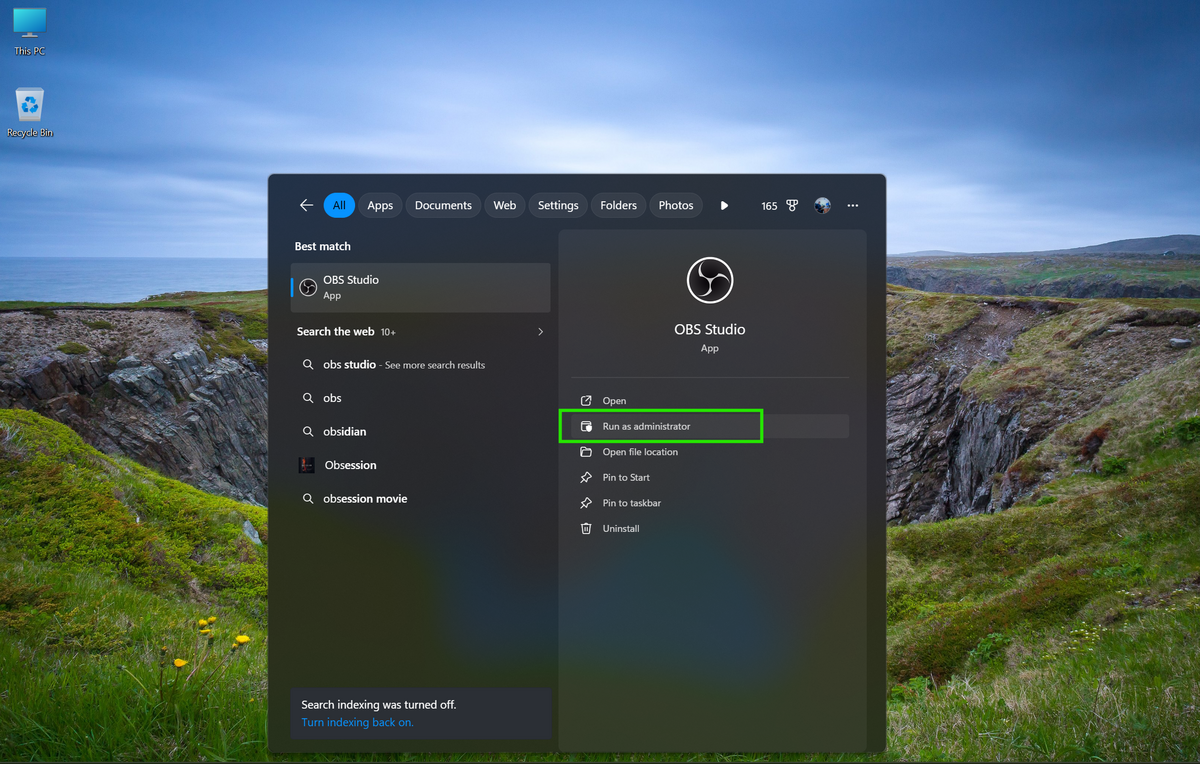
Run OBS Studio as administrator. Right-click the OBS icon and select Run as administrator to avoid permission-related crashes.
-
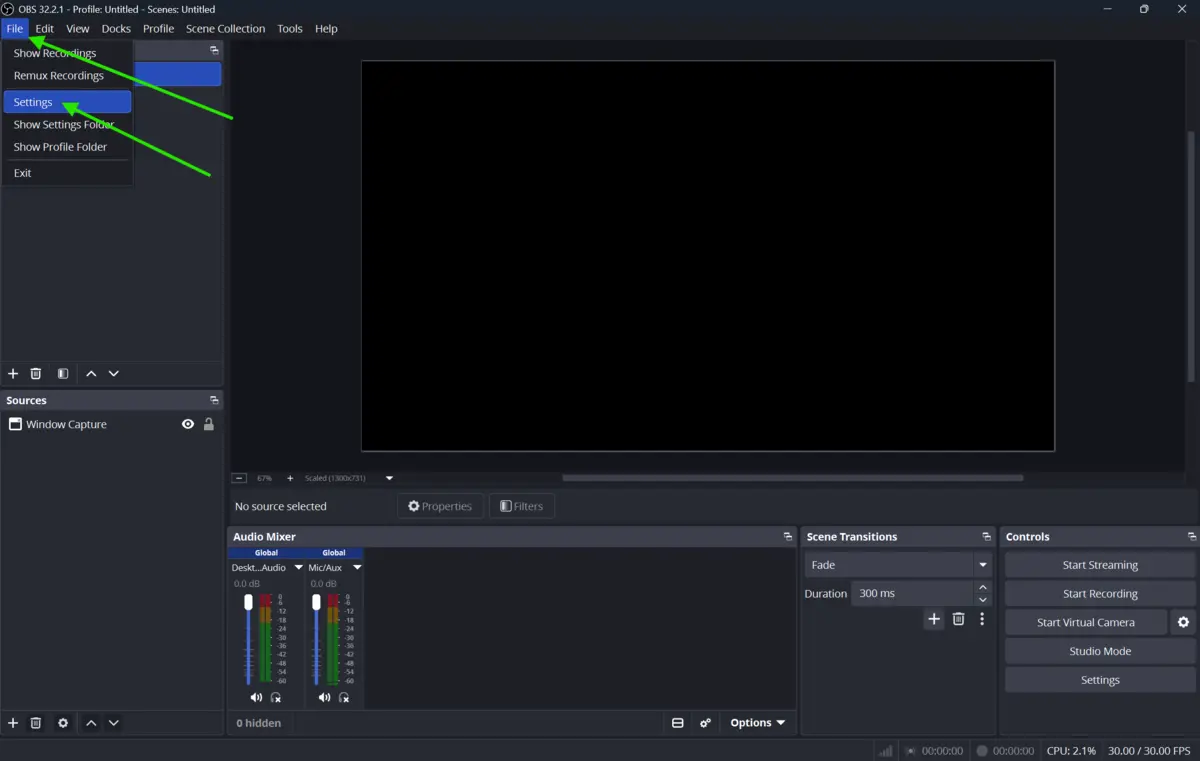
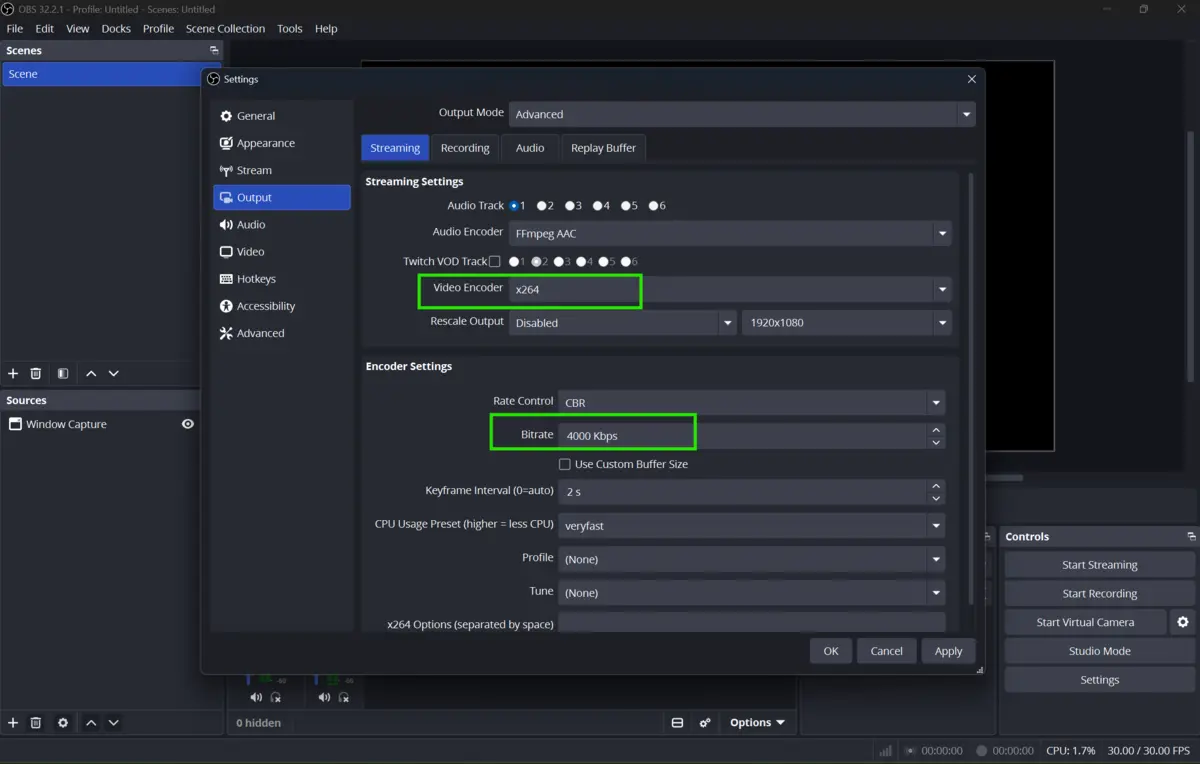
Check your Output settings if OBS lags during recording. Go to Settings, then Output, and lower your bitrate to around 2500 to 4000 Kbps for 1080p streaming.
-
Switch your encoder if lag continues. Try Hardware NVENC if you are using Software x264, or the other way around, to see which one your system handles better.
-
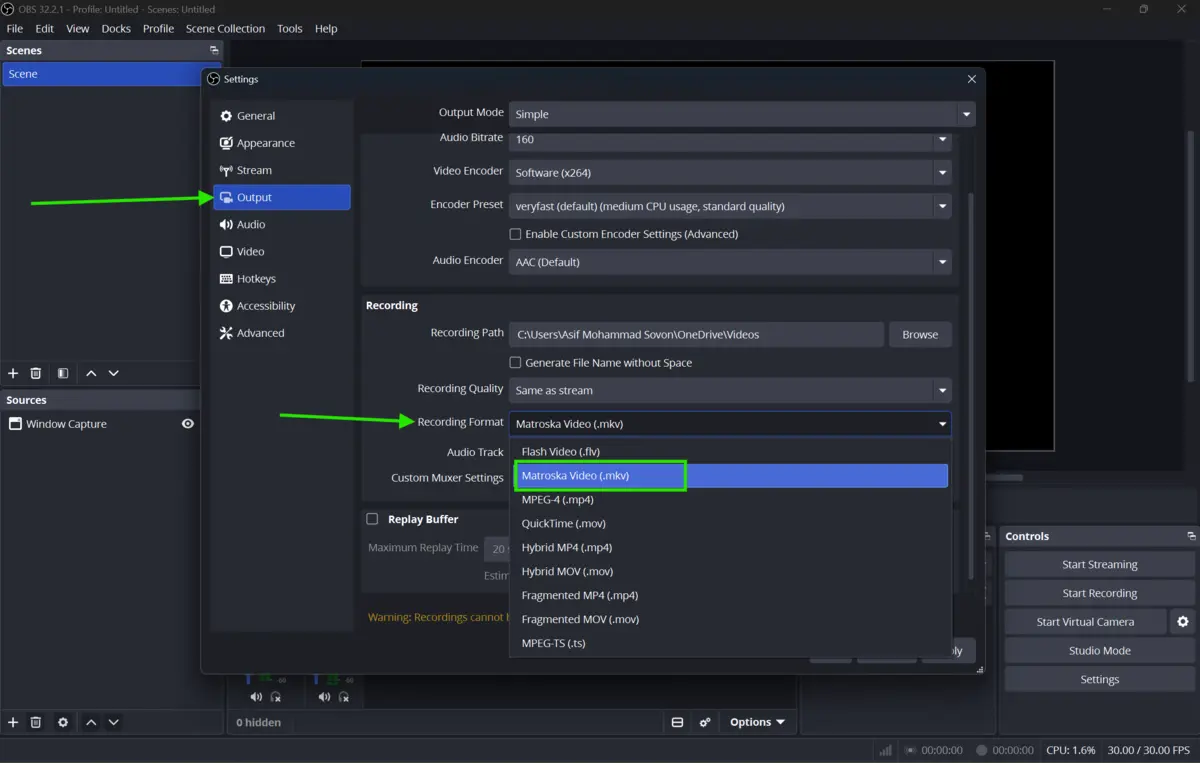
Set your recording format to MKV instead of MP4. MKV files recover better if OBS crashes mid-recording, so you do not lose your footage.
-
Fix black screen issues by right-clicking the problem source and selecting Refresh Cache of Optional Capture Method. This resolves most game capture black screens.
-
Disable Windows Game Bar and Game Mode if you get a black screen while capturing full-screen games. These features often conflict with OBS.
-
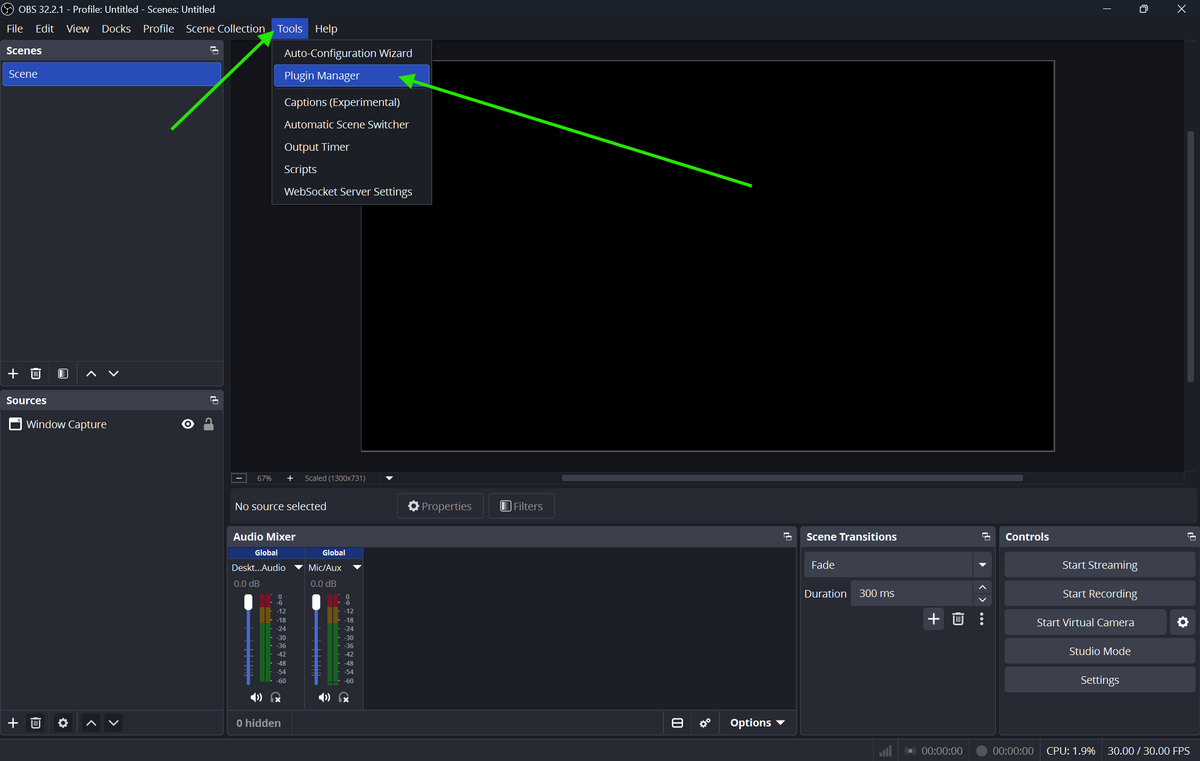
Temporarily disable third-party plugins if crashes started after installing one. Move plugin files out of the OBS plugins folder and relaunch OBS to test.
-
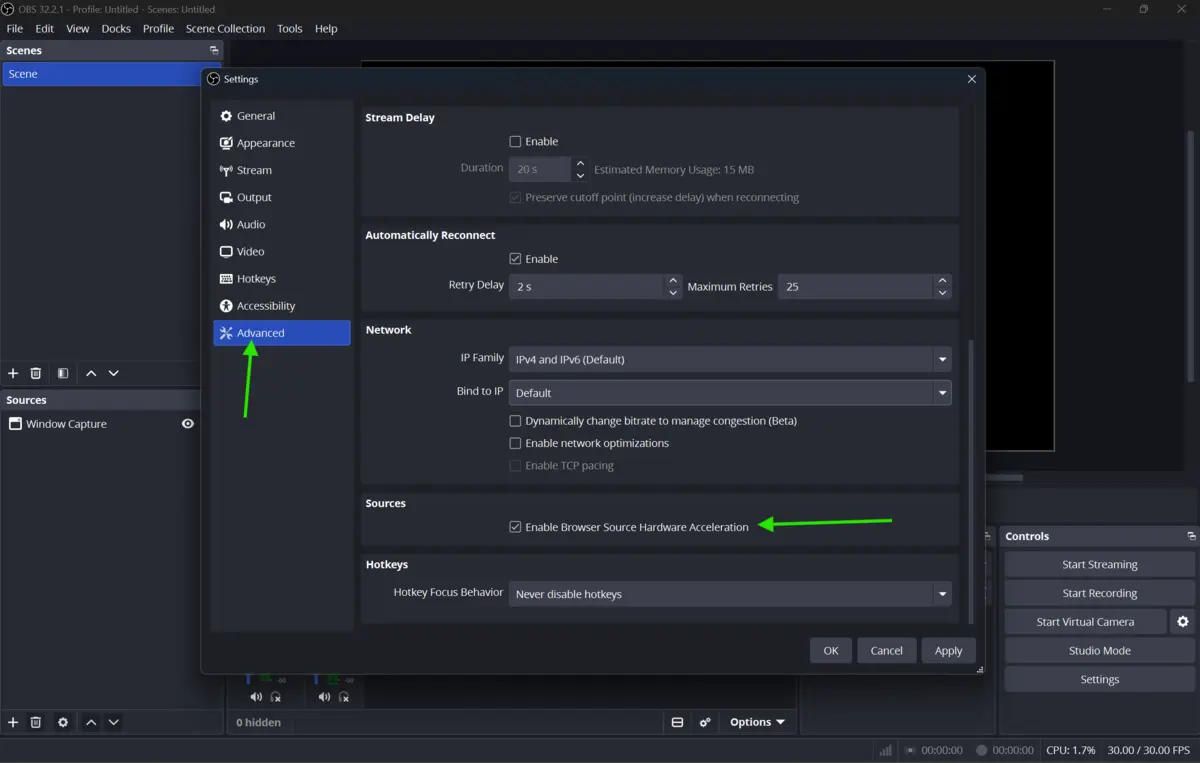
Turn off Hardware Acceleration under Settings, then Advanced, then General, if OBS still freezes. This forces software rendering, which is more stable on some systems.
-
Launch OBS in Safe Mode if nothing else works. This loads OBS without third-party scenes or plugins, so you can isolate the exact cause.
Quick Tips
-
Keep a second, minimal scene as backup in case your main scene collection gets corrupted
-
Use the built-in Auto-Configuration Wizard under Tools to match settings to your hardware automatically
-
Close background apps like browsers and game launchers before a stream to free up system resources
-
Save your scene collection file regularly, so a crash never wipes your setup
Common Mistakes to Avoid
-
Ignoring updates is the biggest mistake. Many users stick with an old OBS version and keep hitting bugs that were already fixed in a newer release.
-
Running too many capture sources at once puts strain on your CPU and GPU, which leads to lag and dropped frames. Keep your scenes lean.
-
Using MP4 for long recordings is risky. If OBS crashes, the file often becomes unplayable. MKV avoids this problem entirely.
Pricing & Availability
OBS Studio is completely free and open source. There is no subscription, no license fee, and no watermark. It works on Windows, macOS, and Linux, and is actively maintained with regular stability updates.
Final Verdict
OBS Studio remains one of the most reliable free tools for streaming and recording once it is set up correctly. Most crashes, lag spikes, and black screens come down to outdated drivers, heavy scenes, or plugin conflicts, and each one has a straightforward fix.
If your current setup keeps giving you trouble, download the latest OBS Studio build from our site today and apply these fixes before your next stream or recording session.
FAQs
Why does OBS Studio keep crashing on startup?
This usually happens due to outdated graphics drivers, a corrupted configuration file, or a conflicting plugin. Updating drivers and launching in Safe Mode usually resolves it.
Why is my OBS screen black during game capture?
Black screens during game capture often happen because of Windows Game Bar interference or an outdated capture method. Refreshing the capture cache or switching to Display Capture usually fixes it.
How do I stop OBS from lagging while recording?
Lower your bitrate, switch encoders, and close background apps competing for CPU or GPU resources. The Auto-Configuration Wizard can also help match settings to your hardware.
Is MKV better than MP4 for OBS recordings?
Yes. MKV recovers better from unexpected crashes, so you keep your footage even if OBS closes unexpectedly mid-recording.
Does updating OBS Studio fix most crash issues?
Yes, in many cases. Each new release includes bug fixes for known crash and stability issues, so keeping OBS updated is one of the simplest ways to avoid problems.
Comments
Let us know about your thoughts
Explore more articles related to OBS Studio
Here you will find all the latest tips and tricks about OBS Studio. Also you will get many solution of problems which you may face while using this app.

Published at: Aug 15, 2026
Best OBS Studio Settings for Smooth Streaming and Recording
If your stream keeps buffering or your recordings look choppy, the problem is rarely your...
Published at: Aug 15, 2026
How to Fix OBS Studio Crashes, Lag & Black Screen
You hit record. OBS freezes. Or worse, it crashes mid-stream while your viewers watch a black...


Built for Serious Creators
OBS Studio is a free, open-source recording and live streaming tool built for creators who want full control. It delivers professional-quality streams, powerful audio and video tools, and zero paywalls — with a learning curve that rewards patience and long-term use.