Best OBS Studio Settings for Smooth Streaming and Recording


Asif Mohammad Sovon
Asif Mohammad Sovon, IT Assistant at Bangladesh Air Force and Fileion tech writer, simplifies tech t...
If your stream keeps buffering or your recordings look choppy, the problem is rarely your PC. It's your OBS Studio settings. Most creators install OBS, hit "Start Streaming," and wonder why the output looks worse than what they see on other channels. The fix usually takes fifteen minutes once you know which settings actually matter.
This guide walks through every setting that affects stream and recording quality: encoder choice, bitrate, resolution, keyframes, and audio. You'll also get separate configurations for streaming and local recording, since they don't need the same values.
OBS Studio is an encoder. It takes your game or screen capture and compresses it into a format your platform or hard drive can handle. A stream that arrives at Twitch or YouTube with the wrong bitrate or misaligned keyframes will buffer or drop frames, no matter how powerful your GPU is. Your upload speed also puts a hard ceiling on what your bitrate can be. Push past it, and viewers see stutters even if your PC never breaks a sweat.
The goal is simple: pick settings that match your hardware, your internet, and the platform you're using.
A. Encoder Selection
Click on File; you'll find the Settings option. 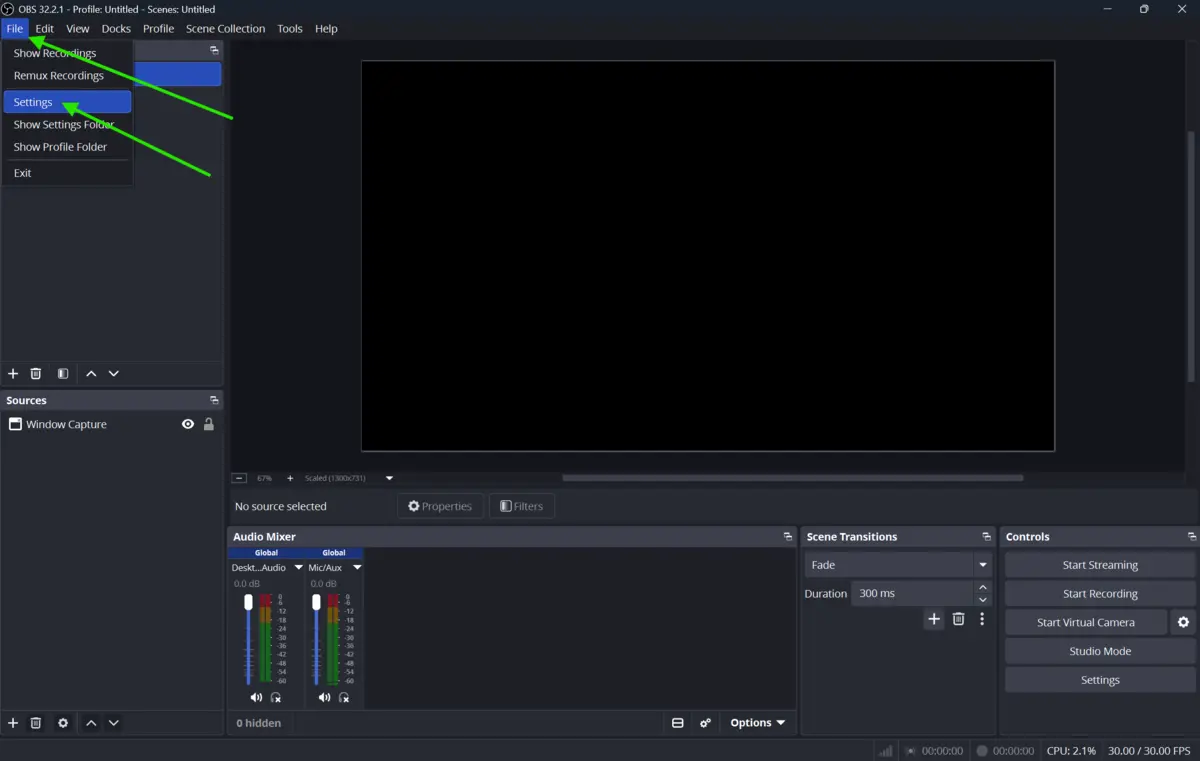
Your encoder choice affects both quality and CPU load.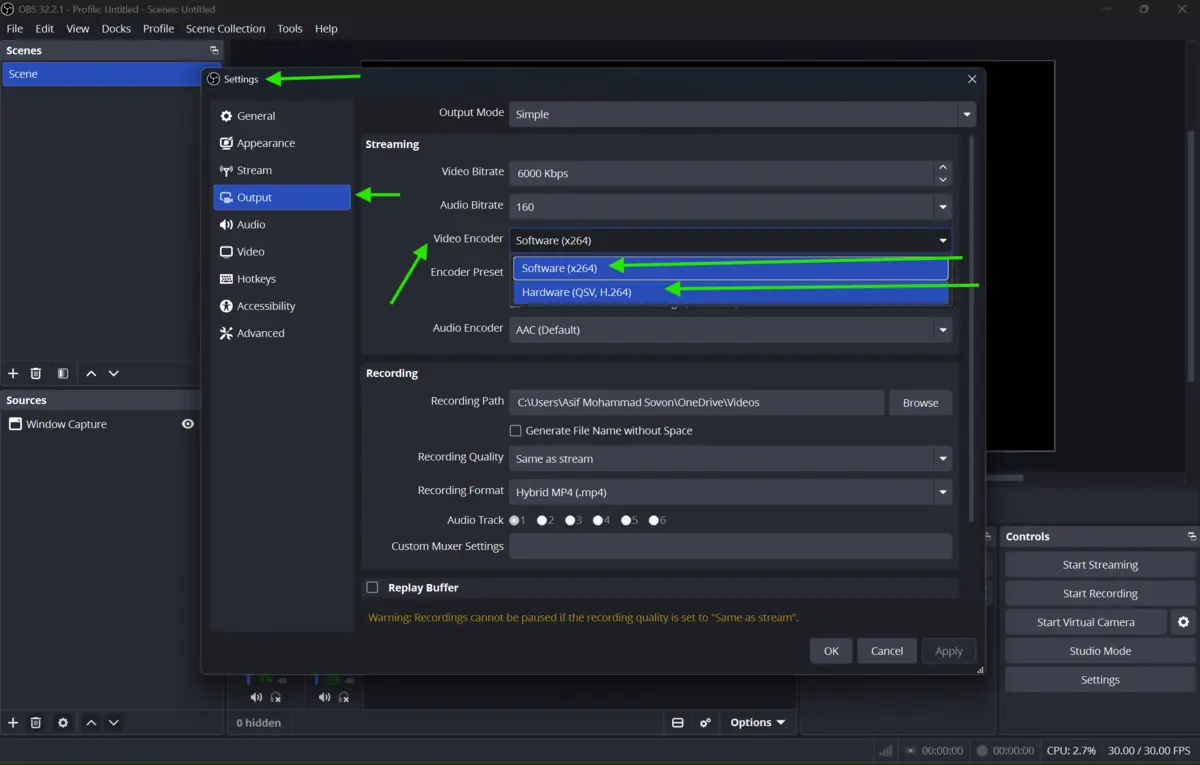
-
NVENC (NVIDIA GPUs): If you have an NVIDIA GPU, use NVENC when available. It uses NVIDIA’s hardware encoder, which offloads work from the CPU and is widely recommended for streaming. Modern NVENC output looks close to x264's "medium" preset, which used to be the gold standard for quality. For most single-PC setups, NVENC is often the better default if you have a supported NVIDIA GPU.
-
x264 (CPU encoding): x264 still produces strong quality, but it uses your CPU heavily. It only makes sense if you're running a dedicated streaming PC with a powerful processor that isn't also rendering your game. If you go this route, start with the "veryfast" or "faster" preset. Slower presets improve quality but risk dropped frames if your CPU can't keep up.
-
AMF (AMD GPUs): AMD's encoder has closed the gap with NVENC on RX 6000 and RX 7000 series cards. Older AMD cards may look slightly softer at the same bitrate.
-
QuickSync (Intel): Intel Arc GPUs support AV1 hardware encoding, which can provide better quality at lower bitrates than H.264. Use it only if your streaming platform supports AV1 ingest/playback.
-
AV1 (newer GPUs): RTX 40-series and newer cards support NVENC AV1. AV1 delivers noticeably better quality per bitrate than H.264, roughly comparable to running H.264 at a much higher bitrate. YouTube supports AV1 streaming; Twitch and Kick do not yet.
B. Best Bitrate Settings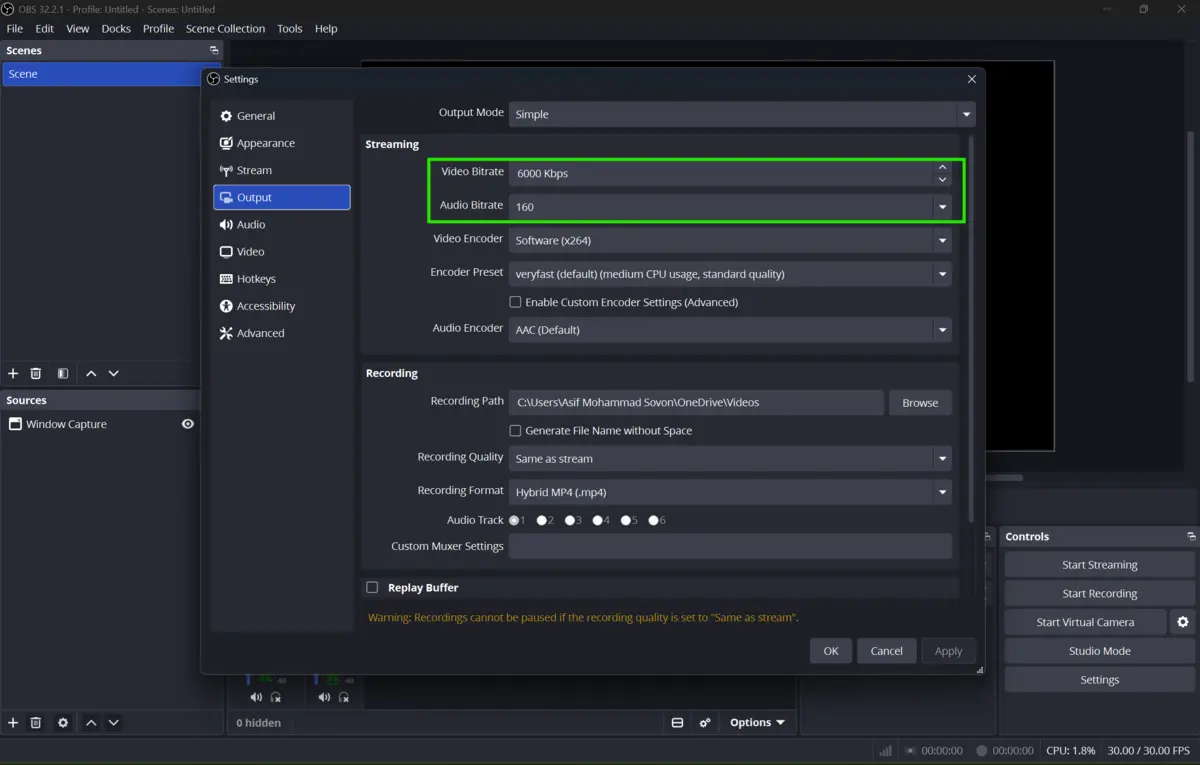
Bitrate is the setting most people get wrong. Two rules apply here.
First, match your bitrate to the platform's cap. Twitch’s standard guidance is commonly 6,000 kbps video for 1080p60, with 48 kHz audio; audio is typically set much lower than 320 kbps in many streaming setups. YouTube’s live recommendations are typically much lower than 51,000 kbps; for 1080p60, YouTube recommends 12 Mbps for H.264 and allows higher bitrates for higher resolutions within its published ranges.
Second, keep your total OBS bitrate at or below 75 to 80 percent of your tested upload speed, not your advertised speed. If your upload tests at 10 Mbps, keep your combined bitrate under 8 Mbps. This headroom absorbs short network dips without dropping frames.
Practical numbers for 1080p60:
-
Twitch: 6,000 kbps, CBR rate control
-
YouTube: up to 9,000 kbps, CBR rate control
-
720p60: 4,500 kbps
If your upload speed can't comfortably sustain 1080p60 at these bitrates, drop to 720p60 instead of lowering the bitrate further. A stable 720p stream looks better to viewers than a buffering 1080p one.
C. Resolution, FPS, and Keyframe Interval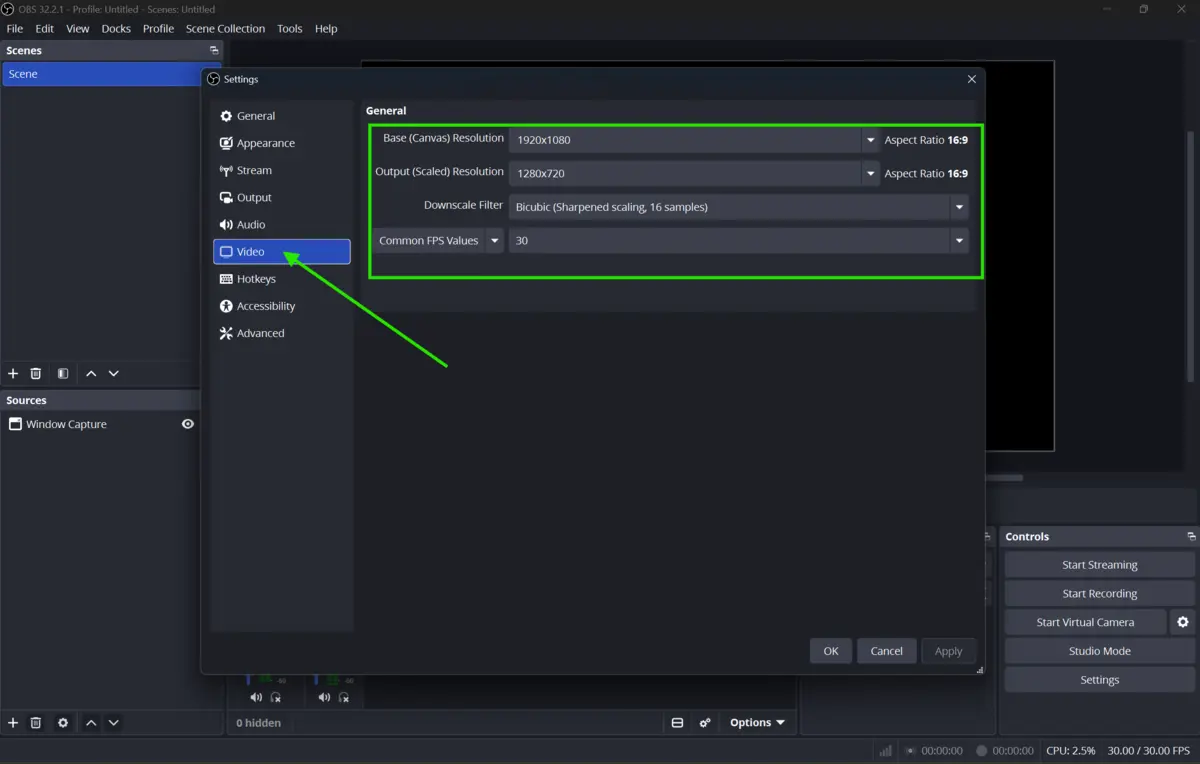
Set your Canvas Resolution to your monitor's native resolution. This is what OBS captures. Set your Output Resolution to what you actually want viewers to see. Downscaling from 1440p to 720p is a clean 2x scale and tends to look sharper than an odd ratio.
For most gaming content, 1080p60 or 720p60 both work well. If you're choosing between 1080p30 and 720p60, pick 720p60. Smooth motion matters more than extra resolution for fast-paced games.
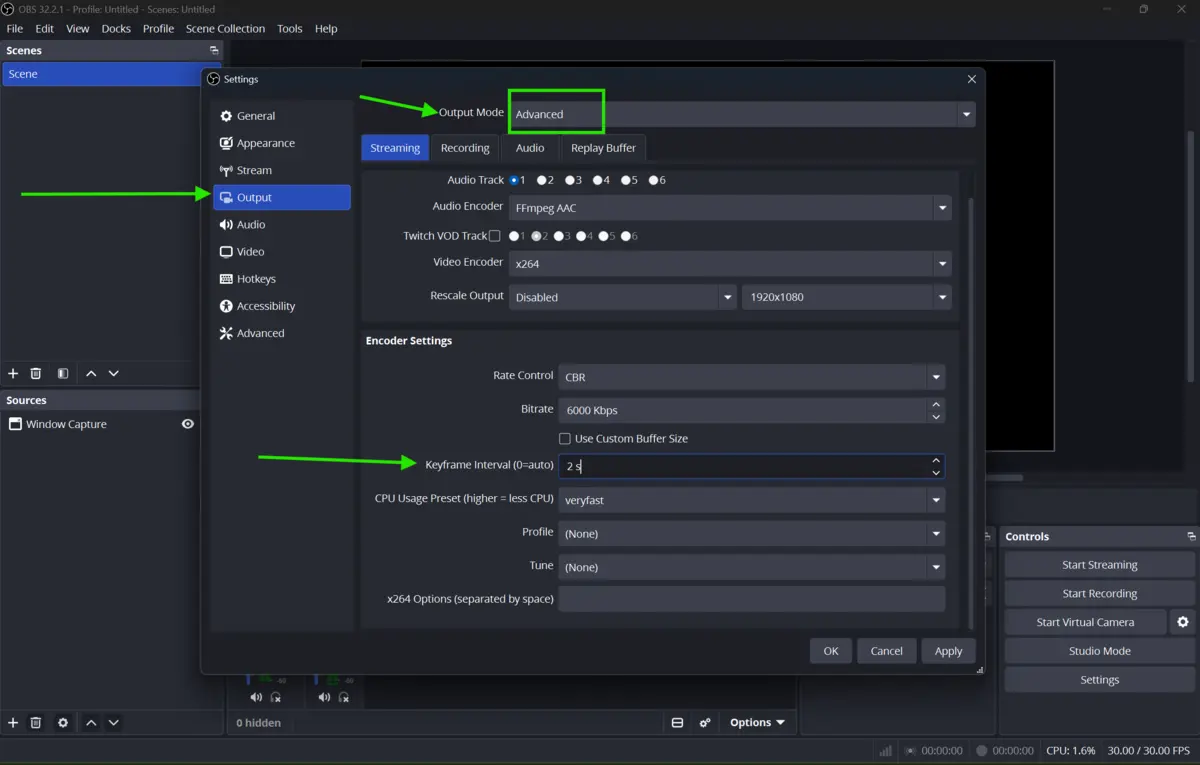 Set the keyframe interval to 2 seconds. This aligns with what Twitch, YouTube, and Kick expect, and mismatched keyframes are a common cause of transcoding issues on the platform side.
D. Audio Settings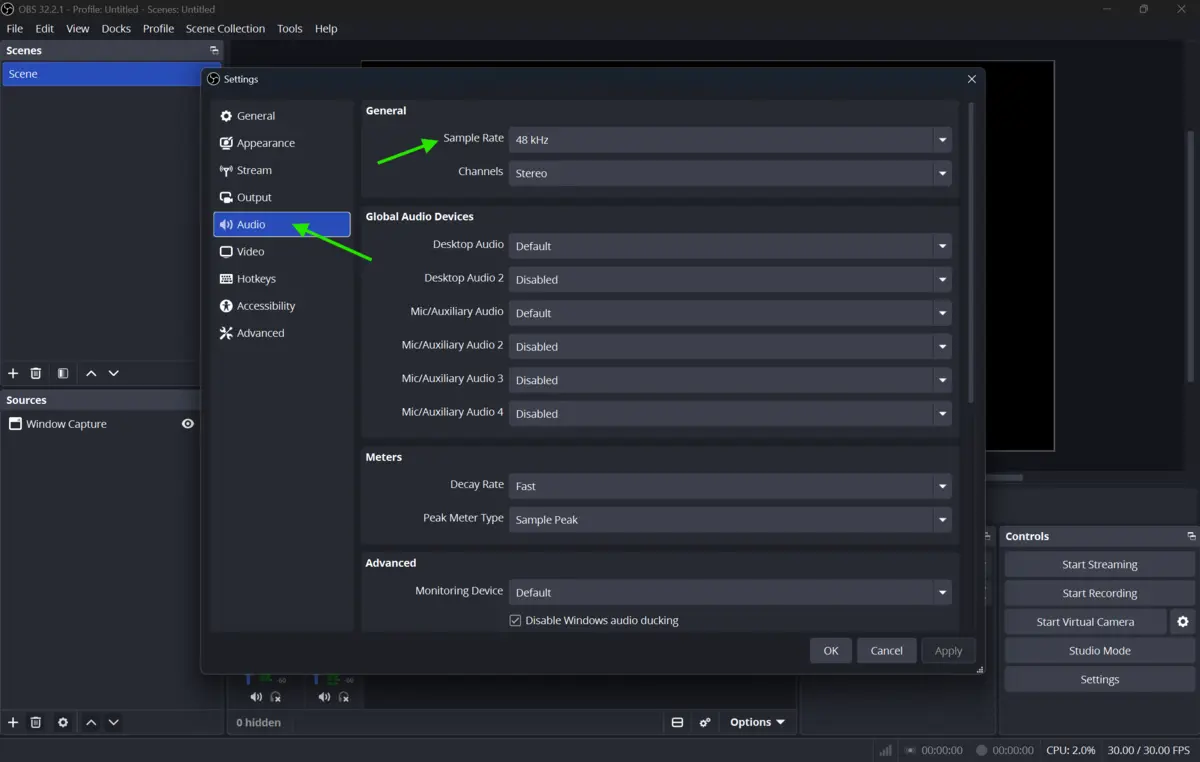
Audio gets overlooked, but bad audio drives viewers away faster than soft video. Set your sample rate to 48 kHz to match standard system audio. Use 160 kbps for general gaming or talk content, and bump it to 320 kbps if you're streaming music or a podcast where clarity matters more.
Keep your microphone and desktop audio on separate tracks. This gives you control during editing and makes it easier to fix levels without re-recording.
E. Best OBS Settings for Local Recording
Recording settings can differ from streaming settings because you're not limited by upload bandwidth or platform caps.
For local recording, raise your bitrate well above your streaming bitrate, since you're only limited by disk space and CPU or GPU headroom. For 1080p60 local recording, many guides recommend a much higher bitrate than streaming; a commonly cited range is 25,000 to 40,000 kbps for higher-quality recordings, which is useful if you plan to re-upload footage or edit highlights later.
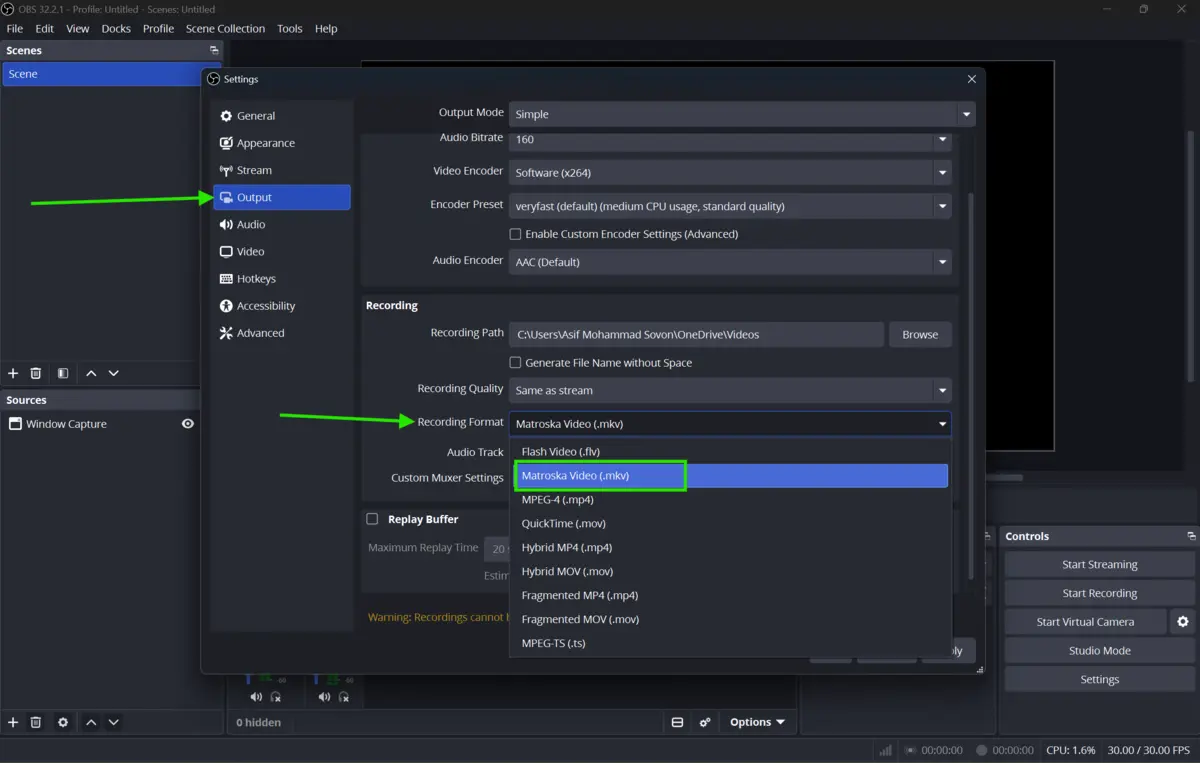 Use MKV instead of MP4 while recording. If OBS crashes or the system loses power, MKV is more resilient; you can remux it to MP4 afterward without re-encoding. You can remux MKV to MP4 afterward without re-encoding, so there's no quality loss.
OBS can stream and record simultaneously using separate encoder settings, but do not assume that a specific GPU model guarantees dual-encoder support. One handles the live stream at a lower bitrate, the other records a high-quality local file, with no performance penalty on either task.
Fixing Common OBS Problems
-
Encoding overloaded warning: This means your encoder can't keep up with the workload. Lower your output resolution, drop your FPS, or switch to a faster preset. Switching from x264 to NVENC often solves this instantly if you have a compatible GPU.
-
Network dropped frames: This points to your internet connection, not OBS. Lower your bitrate, check for other devices consuming your bandwidth, or test your upload speed again under real conditions.
-
Blurry or pixelated stream: Usually means your bitrate is too low for your resolution. Either raise the bitrate within your upload headroom or lower the resolution to match what your bandwidth can support.
-
Audio out of sync: Check your sample rate matches across OBS and your system settings. Also confirm you're not running multiple audio devices with conflicting clocks.
Final Verdict
There's no single perfect OBS configuration. The right settings depend on your GPU, your upload speed, and the platform you're streaming to. That said, a few defaults work for most people: NVENC if you have an NVIDIA GPU, 6,000 kbps CBR for 1080p60 on Twitch, a 2-second keyframe interval, and 160 kbps audio at 48 kHz.
For recording, raise your bitrate and switch to MKV for safety. Test your setup with a private stream before going live, since small configuration mistakes are much easier to catch when nobody's watching.
FAQ
What is the best bitrate for OBS Studio streaming at 1080p60?
For Twitch, 6,000 kbps with CBR rate control is the practical ceiling for non-Partner accounts. For YouTube, you can go higher, up to around 9,000 kbps, if your upload speed supports it.
Should I use NVENC or x264 in OBS?
Use NVENC if you have an NVIDIA RTX 20-series GPU or newer. It delivers quality close to x264's medium preset with almost no CPU cost. Use x264 only if you have a dedicated streaming PC with a strong CPU that isn't also running your game.
Why does my OBS stream keep dropping frames?
Dropped frames usually come from one of two sources. "Encoding overloaded" means your CPU or GPU can't keep up, so lower your resolution or switch encoders. "Network" dropped frames mean your bitrate exceeds what your upload speed can reliably sustain.
What file format should I use for OBS recordings?
Use MKV instead of MP4. MKV survives crashes and unexpected shutdowns without corrupting the file, and you can convert it to MP4 afterward without losing quality.
Can I stream and record simultaneously in OBS?
Yes. OBS supports separate quality settings for streaming and recording simultaneously. If you have a GPU with dual NVENC encoders, you can do both without any performance hit on either task.
Comments
Let us know about your thoughts
Explore more articles related to OBS Studio
Here you will find all the latest tips and tricks about OBS Studio. Also you will get many solution of problems which you may face while using this app.
Published at: Aug 15, 2026
Best OBS Studio Settings for Smooth Streaming and Recording
If your stream keeps buffering or your recordings look choppy, the problem is rarely your...

Published at: Aug 15, 2026
How to Fix OBS Studio Crashes, Lag & Black Screen
You hit record. OBS freezes. Or worse, it crashes mid-stream while your viewers watch a black...


Built for Serious Creators
OBS Studio is a free, open-source recording and live streaming tool built for creators who want full control. It delivers professional-quality streams, powerful audio and video tools, and zero paywalls — with a learning curve that rewards patience and long-term use.